mirror of
https://github.com/youzan/vant.git
synced 2026-05-07 01:01:01 +08:00
 neverland
192 lines
5.3 KiB
Markdown
192 lines
5.3 KiB
Markdown
# 快速上手
|
|
|
|
### 脚手架
|
|
|
|
推荐使用 Vue 官方提供的脚手架 [Vue Cli 3](https://cli.vuejs.org/zh/) 创建项目
|
|
|
|
```bash
|
|
# 安装 Vue Cli
|
|
npm install -g @vue/cli
|
|
|
|
# 创建一个项目
|
|
vue create hello-world
|
|
|
|
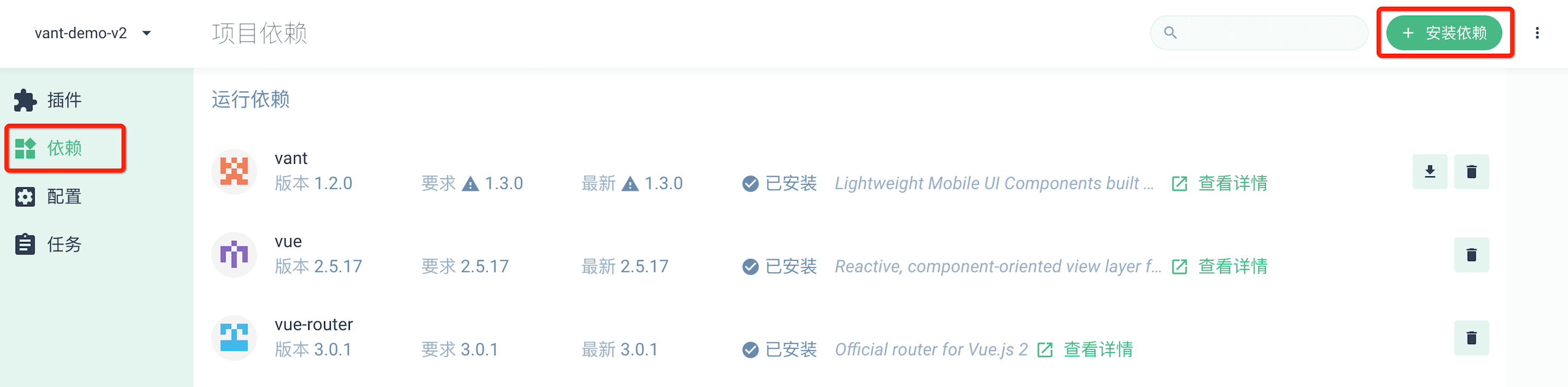
# 创建完成后,可以通过命令打开图形化界面,如下图所示
|
|
vue ui
|
|
```
|
|
|
|
|
|
|
|
在图形化界面中,点击`依赖` -> `安装依赖`,然后将 `vant` 添加到依赖中即可。
|
|
|
|
### 安装
|
|
|
|
```bash
|
|
# 通过 npm 安装
|
|
npm i vant -S
|
|
|
|
# 通过 yarn 安装
|
|
yarn add vant
|
|
```
|
|
|
|
### 示例工程
|
|
|
|
我们提供了一个基于 Vue Cli 的[示例工程](https://github.com/youzan/vant-demo),示例工程会帮助你了解如下内容:
|
|
|
|
- 基于 Vant 搭建单页面应用,配置按需引入组件
|
|
- 配置基于 Rem 的适配方案
|
|
- 配置基于 Viewport 的适配方案
|
|
- 配置基于 TypeScript 的工程
|
|
- 配置自定义主题色方案
|
|
|
|
|
|
## 引入组件
|
|
|
|
### 方式一. 自动按需引入组件 (推荐)
|
|
|
|
[babel-plugin-import](https://github.com/ant-design/babel-plugin-import) 是一款 babel 插件,它会在编译过程中将 import 的写法自动转换为按需引入的方式
|
|
|
|
```bash
|
|
# 安装插件
|
|
npm i babel-plugin-import -D
|
|
```
|
|
|
|
```js
|
|
// 在.babelrc 中添加配置
|
|
// 注意:webpack 1 无需设置 libraryDirectory
|
|
{
|
|
"plugins": [
|
|
["import", {
|
|
"libraryName": "vant",
|
|
"libraryDirectory": "es",
|
|
"style": true
|
|
}]
|
|
]
|
|
}
|
|
|
|
// 对于使用 babel7 的用户,可以在 babel.config.js 中配置
|
|
module.exports = {
|
|
plugins: [
|
|
['import', {
|
|
libraryName: 'vant',
|
|
libraryDirectory: 'es',
|
|
style: true
|
|
}, 'vant']
|
|
]
|
|
};
|
|
```
|
|
|
|
```js
|
|
// 接着你可以在代码中直接引入 Vant 组件
|
|
// 插件会自动将代码转化为方式二中的按需引入形式
|
|
import { Button } from 'vant';
|
|
```
|
|
|
|
> 如果你在使用 TypeScript,可以使用 [ts-import-plugin](https://github.com/Brooooooklyn/ts-import-plugin) 实现按需引入
|
|
|
|
### 方式二. 手动按需引入组件
|
|
|
|
在不使用插件的情况下,可以手动引入需要的组件
|
|
|
|
```js
|
|
import Button from 'vant/lib/button';
|
|
import 'vant/lib/button/style';
|
|
```
|
|
|
|
### 方式三. 导入所有组件
|
|
|
|
Vant 支持一次性导入所有组件,引入所有组件会增加代码包体积,因此不推荐这种做法
|
|
|
|
```js
|
|
import Vue from 'vue';
|
|
import Vant from 'vant';
|
|
import 'vant/lib/index.css';
|
|
|
|
Vue.use(Vant);
|
|
```
|
|
|
|
> 注意:配置 babel-plugin-import 插件后,将不允许以这种方式导入组件
|
|
|
|
### 方式四. 通过 CDN 引入
|
|
|
|
使用 Vant 最简单的方法是直接在 html 文件中引入 CDN 链接,之后你可以通过全局变量`vant`访问到所有组件。
|
|
|
|
```html
|
|
<!-- 引入样式文件 -->
|
|
<link rel="stylesheet" href="https://cdn.jsdelivr.net/npm/vant@2.2/lib/index.css">
|
|
|
|
<!-- 引入 Vue 和 Vant 的 JS 文件 -->
|
|
<script src="https://cdn.jsdelivr.net/npm/vue/dist/vue.min.js"></script>
|
|
<script src="https://cdn.jsdelivr.net/npm/vant@2.2/lib/vant.min.js"></script>
|
|
|
|
<script>
|
|
// 在 #app 标签下渲染一个按钮组件
|
|
new Vue({
|
|
el: '#app',
|
|
template: `<van-button>按钮</van-button>`
|
|
});
|
|
|
|
// 调用函数组件,弹出一个 Toast
|
|
vant.Toast('提示');
|
|
</script>
|
|
```
|
|
|
|
## 其他
|
|
|
|
### Rem 适配
|
|
|
|
Vant 中的样式默认使用`px`作为单位,如果需要使用`rem`单位,推荐使用以下两个工具:
|
|
|
|
- [postcss-pxtorem](https://github.com/cuth/postcss-pxtorem) 是一款 postcss 插件,用于将单位转化为 rem
|
|
- [lib-flexible](https://github.com/amfe/lib-flexible) 用于设置 rem 基准值
|
|
|
|
#### PostCSS 配置
|
|
|
|
下面提供了一份基本的 postcss 配置,可以在此配置的基础上根据项目需求进行修改
|
|
|
|
```js
|
|
module.exports = {
|
|
plugins: {
|
|
'autoprefixer': {
|
|
browsers: ['Android >= 4.0', 'iOS >= 7']
|
|
},
|
|
'postcss-pxtorem': {
|
|
rootValue: 37.5,
|
|
propList: ['*']
|
|
}
|
|
}
|
|
}
|
|
```
|
|
|
|
> 注意:在配置 postcss-loader 时,应避免 ignore node_modules 目录,这会导致 Vant 的样式无法被编译
|
|
|
|
### 在桌面端使用
|
|
|
|
Vant 是一个面向移动端的组件库,因此默认只适配了移动端设备,这意味着组件只监听了移动端的`touch`事件,没有监听桌面端的`mouse`事件。
|
|
|
|
如果你需要在桌面端使用 Vant,可以引入我们提供的 [@vant/touch-emulator](https://github.com/youzan/vant/tree/dev/packages/vant-touch-emulator),这个库会在桌面端自动将`mouse`事件转换成对应的`touch`事件,使得组件能够在桌面端使用。
|
|
|
|
```bash
|
|
# 安装模块
|
|
npm i @vant/touch-emulator -S
|
|
```
|
|
|
|
```js
|
|
// 引入模块后自动生效
|
|
import '@vant/touch-emulator';
|
|
```
|
|
|
|
### 底部安全区适配
|
|
|
|
iPhone X 等机型底部存在底部指示条,指示条的操作区域与页面底部存在重合,容易导致用户误操作,因此我们需要针对这些机型进行底部安全区适配。Vant 中部分组件提供了`safe-area-inset-bottom`属性,设置该属性后,即可在对应的机型上开启适配,如下示例:
|
|
|
|
```html
|
|
<!-- 在 head 标签中添加 meta 标签,并设置 viewport-fit=cover 值 -->
|
|
<meta name="viewport" content="width=device-width, initial-scale=1.0, maximum-scale=1.0, minimum-scale=1.0, viewport-fit=cover">
|
|
|
|
<!-- 开启 safe-area-inset-bottom 属性 -->
|
|
<van-number-keyboard safe-area-inset-bottom />
|
|
```
|
|
|
|
<img src="https://b.yzcdn.cn/vant/safearea.png" style="margin-top: 30px;">
|